Nanoleaf
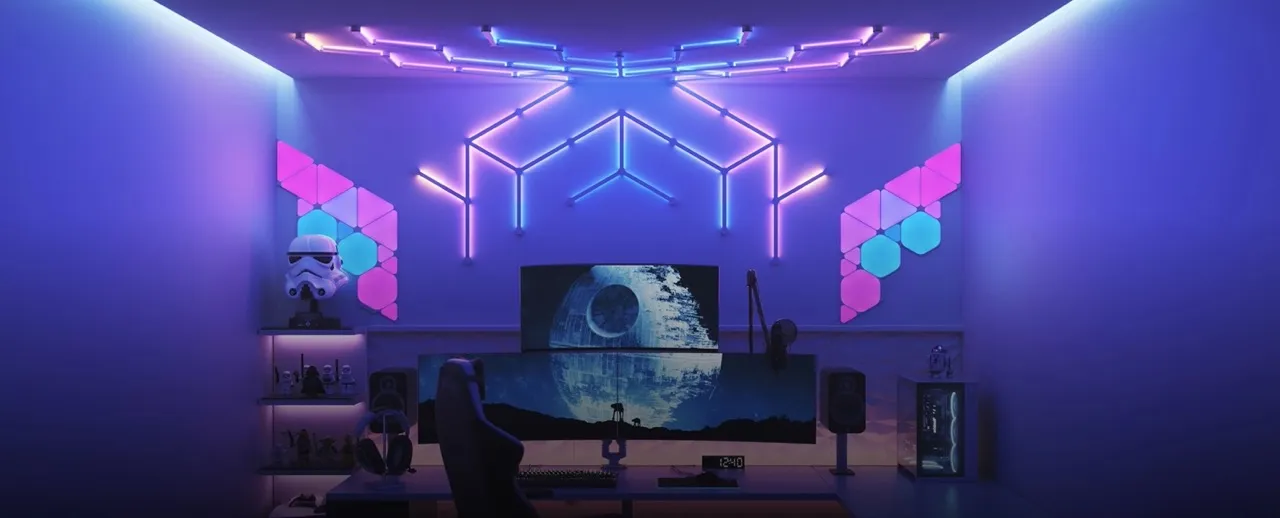 Image from nanoleaf.me
Supported devices 🔗
To this date, iLightShow supports the following Nanoleaf devices:
- Nanoleaf Light Panels (Aurora)
- Nanoleaf Canvas
- Nanoleaf Shapes (Hexagons, Triangles, Mini Triangles)
- Nanoleaf Lines
- Nanoleaf 4D
- Nanoleaf Essentials
Supported Nanoleaf Essentials devices 🔗
| Device | Model |
|---|---|
| Nanoleaf Essentials Holiday String Lights (2023 version) | NL71K1 |
| Nanoleaf Essentials Holiday String Lights (2024 version) | NL71K2 |
| Nanoleaf Essentials Indoor HD Lightstrip | NL72K1 |
| Nanoleaf Essentials Indoor Lightstrip | NL72K3 |
| Nanoleaf Floor Lamp | NL72K4 |
| Nanoleaf Rope Lights | NL72K6 |
| Nanoleaf Essentials Outdoor String Lights | NL73K1 |
| Nanoleaf Essentials Permanent Outdoor Lights | NL73K3 |
| Nanoleaf Essentials WiFi A19 | NL75K1 |
This list was last updated on March 17, 2026.
How to connect Nanoleaf to iLightShow 🔗
- Ensure your Nanoleaf device is setup from the Nanoleaf app and is connected to your Wi-Fi network. It should be on the same network as the device running iLightShow.
- Open the iLightShow app tap the “Lights” button
- Tap the
 icon to access the list of available lights
 - iLightShow should automatically detect your Nanoleaf device
- Tap on the Nanoleaf device to connect it to iLightShow
- Press the Power button of your Nanoleaf device for 5-10 seconds
- Your Nanoleaf device should now be connected to iLightShow 🎉


© Nicolas Anjoran 2026 | Privacy Policy